
How to Opt-in/out with Campaign Members
The instruction in this article assume the plugin CampaignSuite - Feed action: Campaign member is be installed.
Contact support if you do not have this plugin and wish to apply Opt-in/out via Campaign members.
For every action related to a Campaign Member, a separate feed action must be created. For example, in a preference center, each newsletter (campaign) has both an opt-in and an opt-out action.
Below you will find the minimum requirements a feed action must meet for successful processing.
Feed Action Settings
For opt-ins via Campaign Members, create a Feed Action with the following settings.
Type of action
Select Create of Update Campaign Member as the action type.

Moment of execution
The execution timing depends on the situation in which the opt-in/out is applied.
Contact already known
If the contact is already known—for example, in a preference center where the Contact ID is included in the URL—the action can be executed immediately after the entry is created.

Contact not yet known
If the contact is not yet known—for example, an opt-in after a donation—you must wait for the data retrieved from Salesforce once the payment is linked. In this case, select On Findock v2 webhook call.

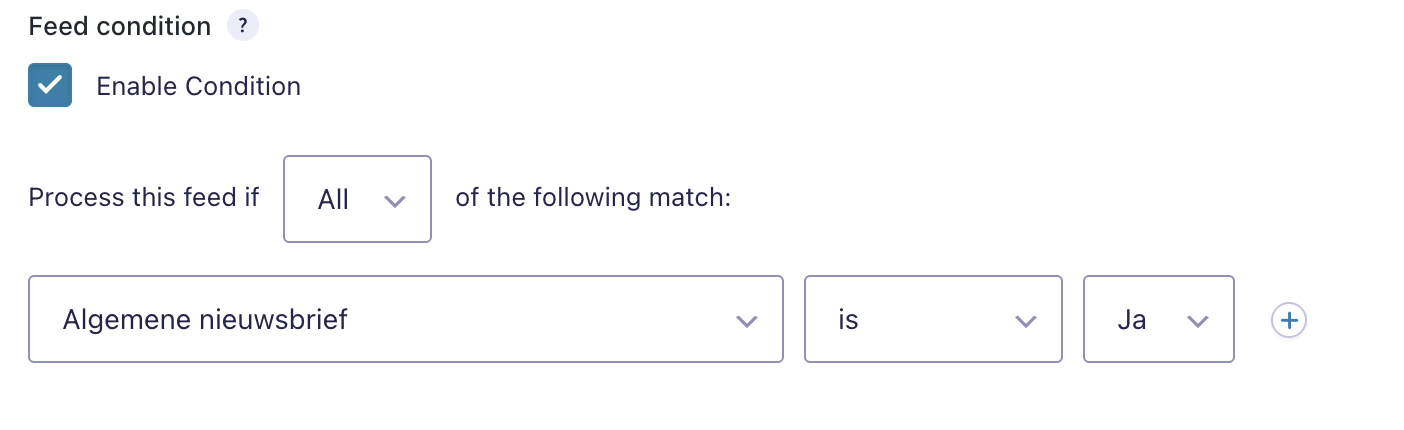
Feed condition
Use conditional rules to ensure the feed action only runs when the user has indicated their preference.
For example:
-
In a preference center, the yes/no choice must be evaluated.
-
During a donation, a consent checkbox must be checked.
Feed Action Fields
To create or update an opt-in as a campaign member, several minimum data points from the form are required.
Contact ID
To know which contact the Campaign Member should be created for, a Contact ID is needed. In a preference center, this is often loaded from the Contact ID in the URL into a hidden field.
In the Feed Action under the Settings tab, select the value for Contact ID.

Campaign ID
To know which campaign a Campaign Member should belong to, a Campaign ID must be provided. This is usually done by creating a hidden field in the form with this ID set as a default value.
In the Feed Action under the Settings tab, select the value for Campaign ID.
Opt-in Value
Once the Contact ID and Campaign ID are known, a new Campaign Member can be created or an existing one updated.
To ensure the opt-in becomes active (or inactive in the case of an opt-out), the relevant field must be updated to the correct value.
In the Feed Action under the Settings tab, select the value for the chosen opt-in field, for example Status opt in.

Additional Fields
Any additional fields that need to be updated on the Campaign Member—such as an opt-in date—can be added in the same way as the opt-in value described above.
